2011-07-19 How to copy a Google+ circle
Not quite drag & drop
circles tab
The Google+ circles tabs allows you to create and delete circles. It allows you to move your contacts into and out of circles. It also allows you copy all contacts from circle to another, but you cannot simple drag one circle to another Copying all contacts from one circle to another is not very complex, but it is not very obvious either..
view in tab
To easily copy all contacts from one circle into another, you'll want to view circle in Tab.


When you click a circle, Google+ will pop up a dialog box. Near the bottom of that dialog box
are three links: View stream for this circle
, View circle in tab
and Delete this circle
.
You can click the circle to get that dialog box and then chose View circle in tab
, but it is faster
to right-click the circle and then choose View circle in tab
from its context menu.
circle in tab
Choosing View circle in tab
brings up a web page that looks almost the same like the regular Google+ Circles tab.
The main difference is that it doesn't show anyone but the contacts in the selected group.

The More actions
menu near the upper right corner has a Select all
menu item.
You use that to select all the members of the group and then drag and drop the entire
group onto the first circle, where it says Drop here to here to create a new circle
.
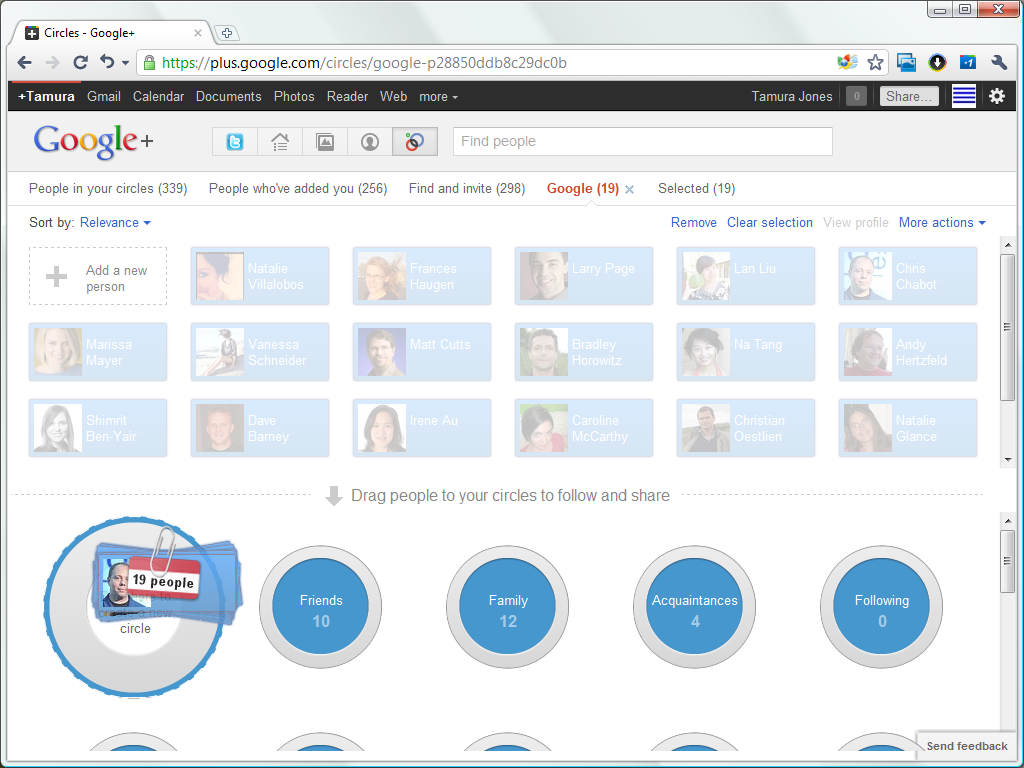
new circle
Once you've dragged and dropped the contacts, the new circle you've just created is shown.

There are two link inside the new circle: Create Circle
and Clear
.
I think Name circle
would be a better name than Create Circle
.
When you choose to Create Circle
,
Google+ prompts you to name it by popping up the circle's dialog box.

You enter a new name in the edit box along the top of the dialog box,
and then click the Create circle with n people
button
in the lower right corner.
When you click that button, Google+ add the new groups to the end of the list of your already existing groups.
why
You can rename circles, but that is not always good enough. There are several reasons why you may want to copy a circle instead. One reason is to copy several existing circles into a single, larger one. The other reason is sorting your circles into a different order; How to sort Google+ circles explains how that's done.
links
Copyright © Tamura Jones. All Rights reserved.